Overview
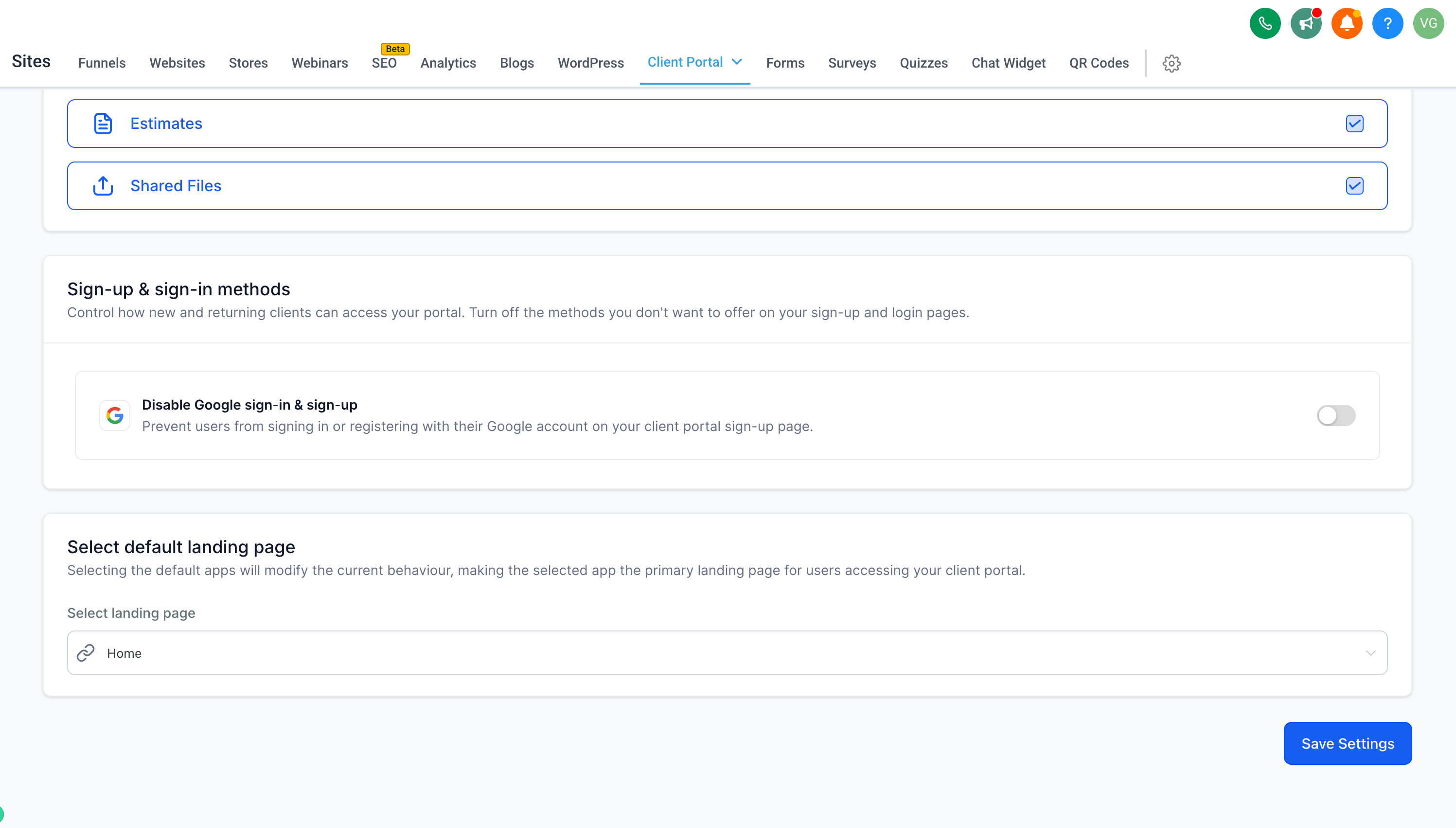
The platform now lets your account control whether the "Sign in with Google" option appears on the Client Portal sign-up and login pages. Admins can enable or disable Google Sign-In directly from the Client Portal app permissions — giving businesses the flexibility to align their sign-up experience with their own compliance and data-handling requirements (for example, GDPR and other European regulatory considerations).
Key Highlights
- Google Sign-In Toggle — Show or hide the Google button on your portal's sign-up and login pages.
- Managed in App Permissions — Control sits directly with the account admin, no support ticket needed.
- Compliance flexibility — Remove third-party sign-in to align with regional privacy rules (e.g. GDPR).
How to Use It
- Go to your account → Sites > Client Portal settings.
- Open App Permissions and scroll to Sign-up & sign-in methods.
- Toggle Disable Google sign-in & sign-up ON or OFF.
- Click Save Settings — done!
Why This Feature?
- Previously, Google Sign-In was always on with no way to turn it off — which raised compliance concerns for businesses operating under European (GDPR) data-handling requirements.
- Now, your account has full control over which authentication options appear on the portal, so your sign-up experience can match your regulatory and business needs.
Notes
- When disabled, contacts sign up / log in with email + password only, or by logging in using a secure code.
- Configured per account via Client Portal app permissions.
Available on the Client Portal Web platform.
Was this article helpful?
That’s Great!
Thank you for your feedback
Sorry! We couldn't be helpful
Thank you for your feedback
Feedback sent
We appreciate your effort and will try to fix the article